
As soon as you create your Sessionize account, you'll have access to your personal speaker area. Even before submitting your first session, you can set up your public profile and browse speaking opportunities through Discover events. Let's go over the most important features available to speakers.
Edit your profile
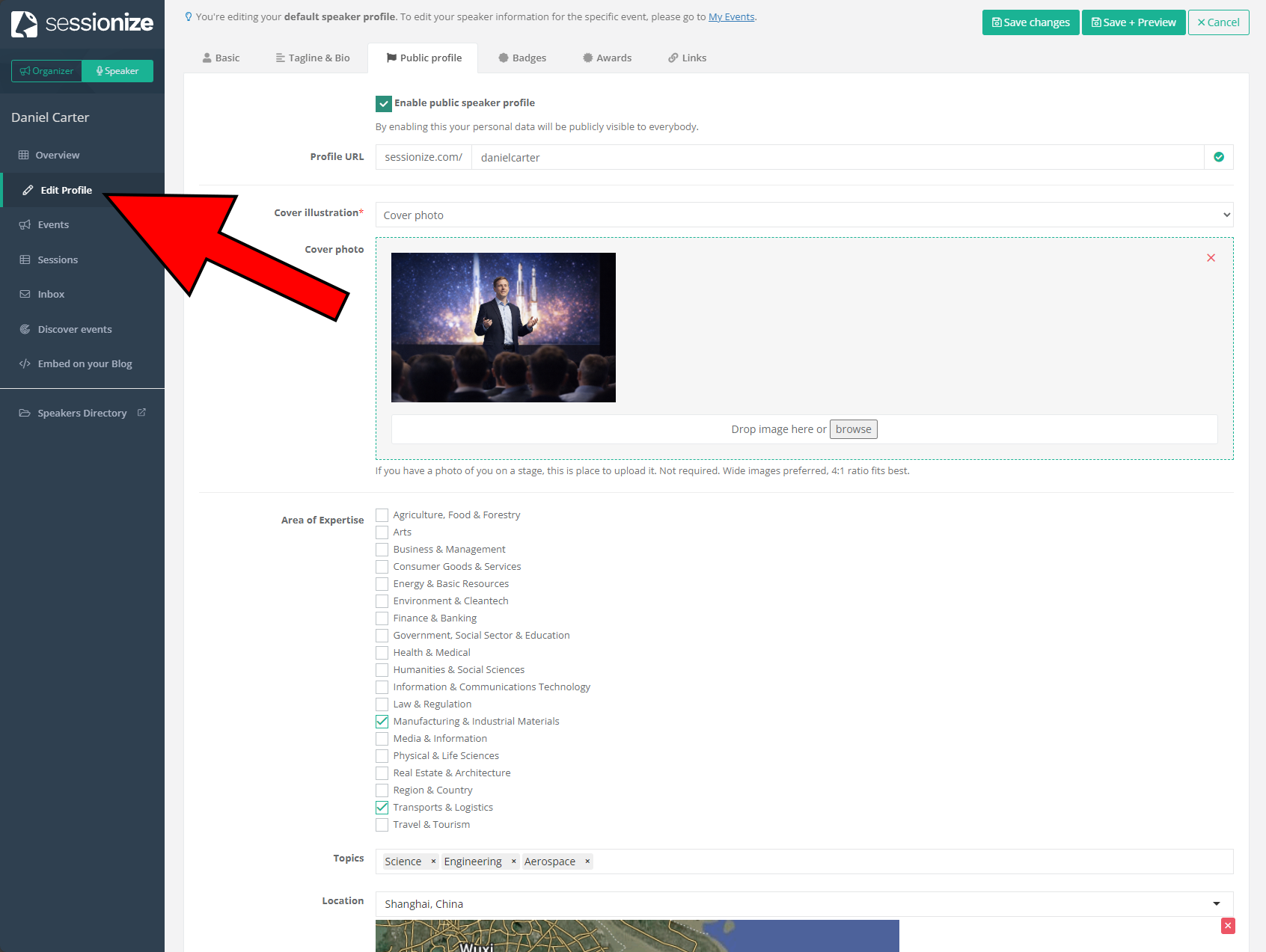
Your speaker profile is your professional presence on Sessionize. You can access it by clicking Edit Profile in the menu on the left.
The Edit Profile page has several tabs where you can manage different aspects of your profile:
- Basic — Your name, email, photo, and optional screen name (some events use screen names instead of real names)
- Tagline & Bio — Your professional tagline and biography. You can add multiple language versions and choose what appears on your public profile
- Public profile — Enable your public speaker profile, set your custom URL, add a cover photo, select your areas of expertise, list specific topics you speak about, and set your location
- Badges — Add verified industry badges and certifications (like those from Credly). You can add up to 12 badges. To learn how to retreive them, refer to the following article: How to retrieve a certificate badge for your public speaker profile
- Awards — Display your business accolades. Each award must be verified with a link to your award profile page. To find out how to add them, take a look at the following article: Awards in public speaker profiles
- Links - Add your social media profiles, blog, and company website
Make your profile public if you want events to find you. Without a public profile enabled, you won't appear in event organizers' searches, which means you'll need to know the specific Call for Speakers/Call for Papers link for each event you want to submit to. The more complete your profile - especially your areas of expertise, topics, and location - the better your chances of being discovered by the right events. Look for the Enable public speaker profile option in the Public profile tab.
Manage your speaking activity
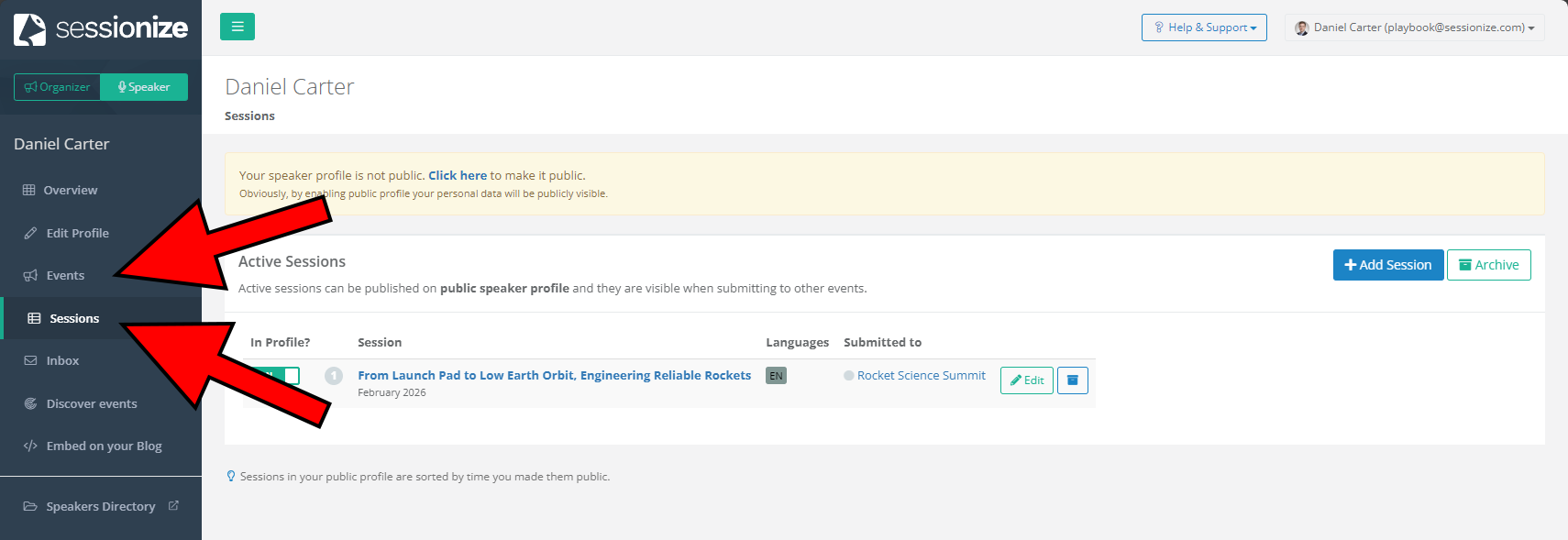
Once you start submitting to events and building your speaker profile, you'll need a way to keep track of everything. The Events and Sessions menus in your speaker area help you organize your speaking activities, see where you've applied, and manage the sessions you've submitted.
The Events menu gives you a complete overview of your event participation — from events you're currently involved with to past speaking engagements and even events you've just browsed. The Sessions menu is where you manage your active and archived sessions.
Active Sessions can be published on your public speaker profile and reused when submitting to new events, without filling out the entire submission form again. It also shows event organizers your speaking topics and experience when they discover your profile.
Check your inbox
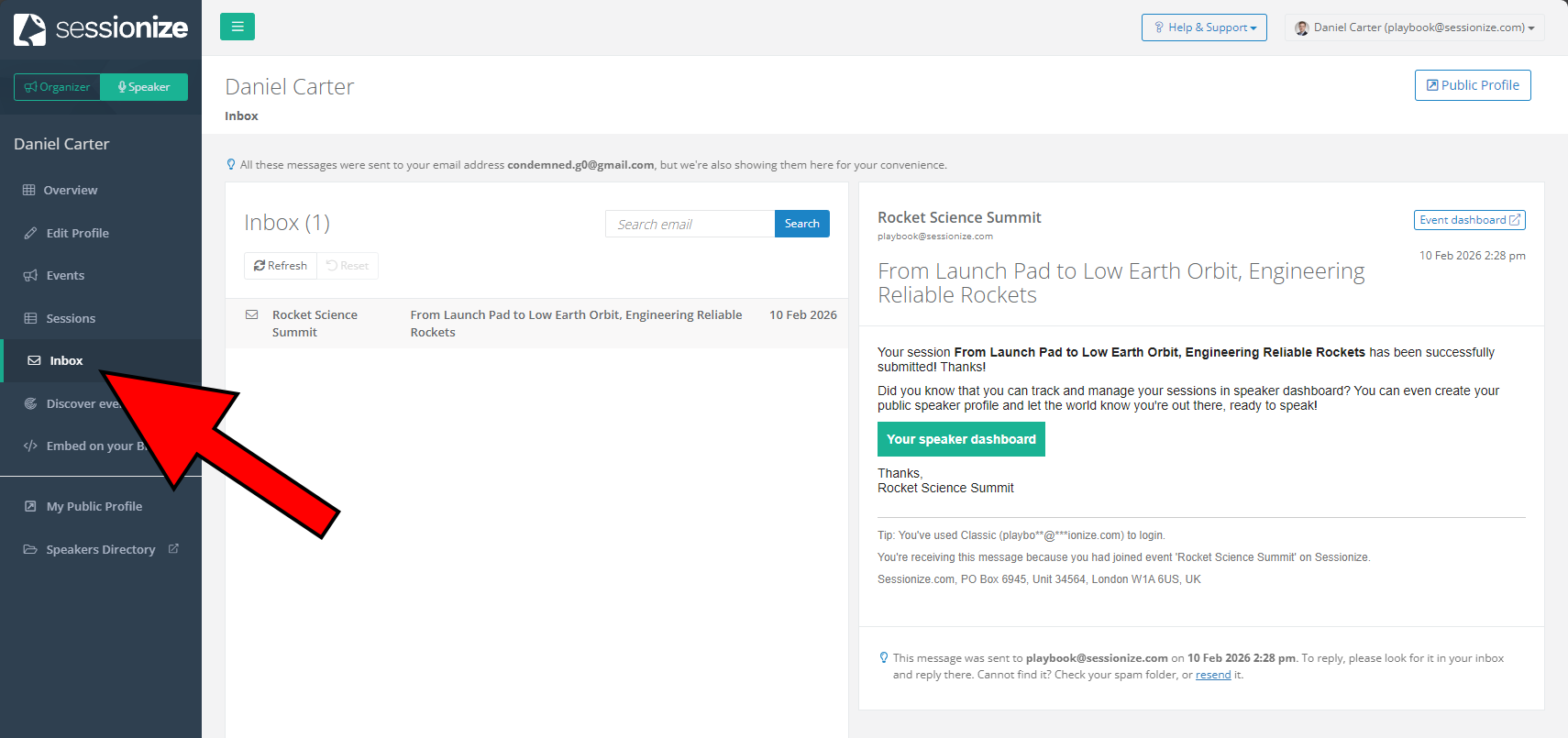
The Inbox menu is what you can use to check all communication from event organizers. Every message an event organizer sends you appears here, organized by event. All messages are also sent to your email address, but the inbox gives you a convenient place to review all your event-related communication in one spot without digging through your email. You can search through messages if you need to find something specific.
Event organizers use this to communicate important information about your submission status, event schedules, technical requirements, travel details, and other critical updates. Make sure the email address in your profile is one you check regularly, as you'll receive all these messages there too. If you miss important messages from organizers, you might miss deadlines, schedule changes, or other crucial information about your participation in an event.
Discover events to find speaking opportunities
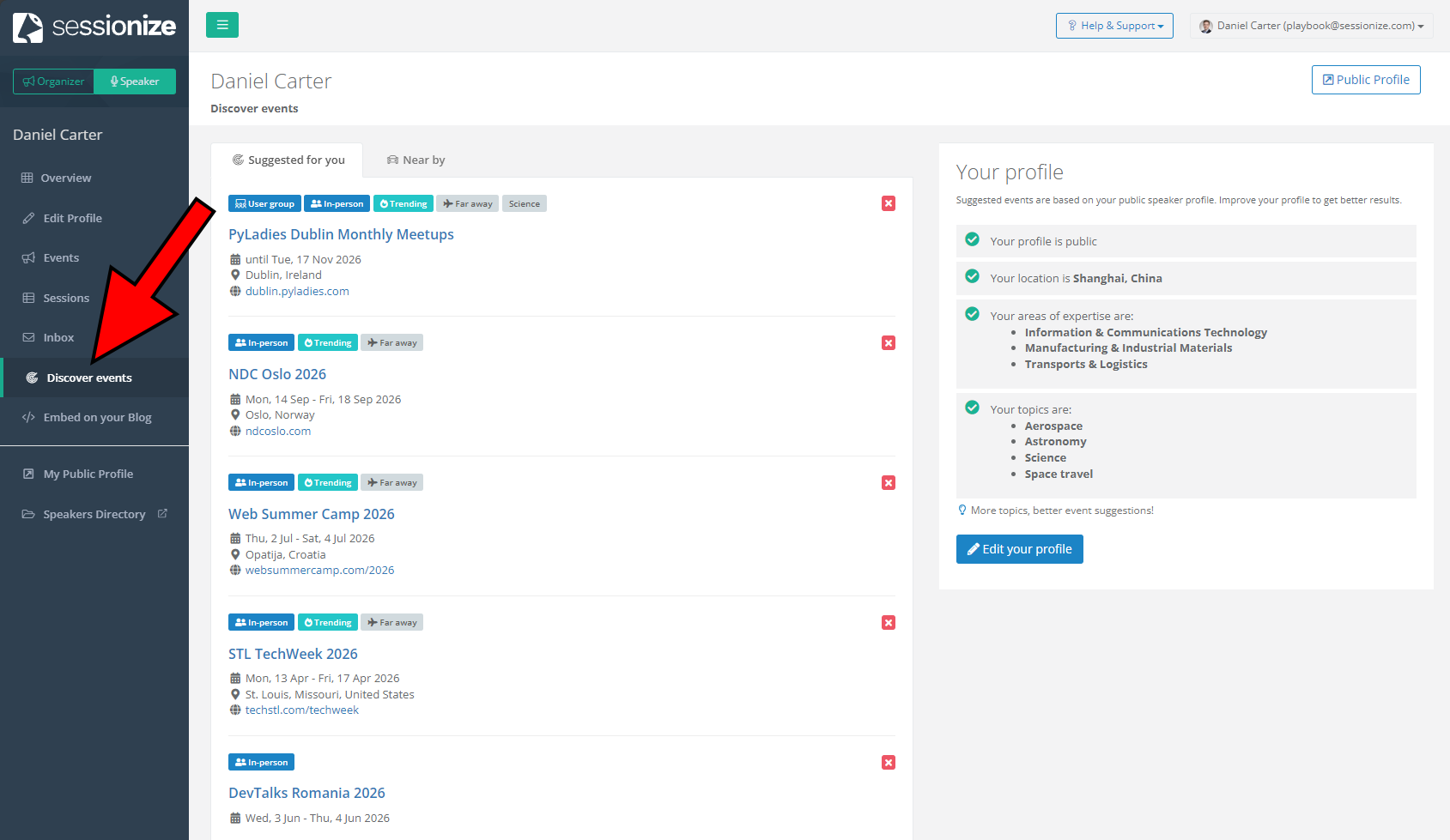
The Discover events menu is where event organizers looking for speakers can find you - and where you can see events that match your speaking profile. When you visit the Discover events page, you'll see events in two tabs:
- Suggested for you — Events that match your areas of expertise, topics, and location based on your public profile
- Near by — Events geographically close to your location
The events you see here are events whose organizers have chosen to make their Call for Speakers discoverable to speakers - not all matching events will necessarily appear here, for a variety of reasons. Each event shows key information like dates, location, whether it's in-person or remote, and if the event covers travel expenses or fees..
You can only use Discover events if you have a public profile with your location, areas of expertise, and topics filled in. Without these, we have no way to match you with relevant events.
Why am I not seeing all events, even if they match my profile?
Not every event with an open Call for Speakers will show up in your Discover events results, even if it's a perfect match for your profile. There are two main reasons for this:
Privacy and control — Event organizers choose whether to make their CFP discoverable. Many events prefer to share their CFP link directly with specific communities, mailing lists, or speaker networks rather than making it publicly searchable. If an organizer hasn't opted in, their event simply won't appear in your results
Event credibility — New events aren't immediately shown to all matching speakers. Before an event starts appearing in speaker recommendations, it needs to establish its credibility on the platform. This protects speakers from being directed toward events that may be inactive, unserious, or abandoned
Why can't I just search for all events?
You might be wondering why there isn't a simple search where you can browse all events with an open Call for Speakers and filter by city or topic. A publicly searchable event directory would open the door to mass spam submissions — including automated ones using scripts and AI tools — which would overwhelm event organizers with irrelevant, low-quality submissions. The current system protects organizers and ensures better quality matches between speakers and events.
The best way to find speaking opportunities on Sessionize is to complete your public profile thoroughly, check Discover events menu regularly, network and ask for CFP links directly, and be patient. Start by filling in your location, all your areas of expertise, and specific topics you speak about — the more complete your profile, the better your chances of being matched with relevant events. Make it a habit to check Discover events regularly, as new events appear when organizers open their CFPs and choose to make them discoverable. Don't rely solely on Sessionize's discovery feature though - many events share their Sessionize CFP links through their websites, social media, community channels, or speaker networks, and once you have a link, you can submit directly without needing to discover the event through Sessionize. Finally, remember that Discover events is just one channel for finding opportunities, not the only one. Most speakers find events through their own networks, communities, and direct outreach, so keep building those connections alongside using Sessionize.
Your public speaker profile: Putting it all together
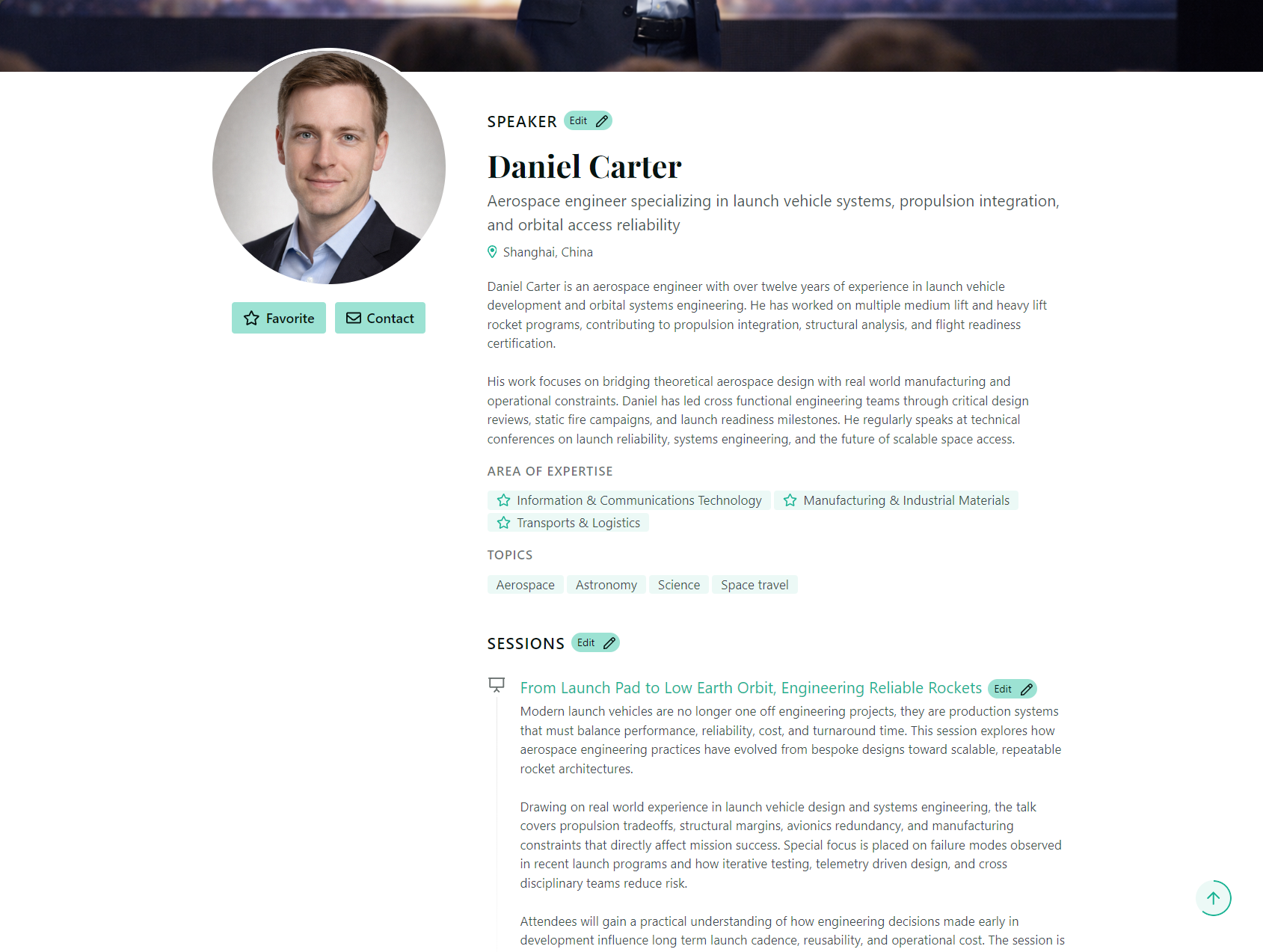
When you enable your public profile and fill in all the information we've covered, this is what event organizers and other speakers will see when they discover you.
Your public speaker profile is your professional presence in the speaking community. It showcases your expertise, speaking topics, past sessions, and makes it easy for event organizers to understand what you bring to their event. It's also part of Sessionize's Speakers Directory — a growing collection of tens of thousands of speakers that event organizers actively use to find the right people for their events. This is what you're working towards — a polished, professional profile that helps you get discovered by the right events and makes it easy for organizers to say "yes, this is the speaker we want".
You can see your public profile at any time by clicking My Public Profile in the menu, or by visiting the custom URL you've selected in the Public profile tab of the Edit Profile menu. If you haven't enabled your public profile yet, now's the time to go back to Edit Profile and turn it on.
What if I accidentally created multiple accounts?
It happens — maybe you signed up with your email once and then used a social login another time, or you simply forgot you already had an account. No need to worry. Sessionize lets you merge multiple accounts into one, so all your sessions, events, and speaker data end up in a single place. See our Migrating (merging) accounts article for step-by-step instructions.