
People change jobs. Companies get acquired, email addresses get shut down, and the login you used for a conference five years ago fades from memory. Sessionize has been around for many years, so sooner or later, some of our users find they can't get into their account.
Getting back in is usually easy, as long as you take the steps in the right order. And once you're back in, take five minutes to make sure it never happens again. That part is at the end of this article. If you'd like to delete your account instead, check out Deleting your Sessionize account and personal data.
Can't access your account
Most access problems aren't really access problems. In the vast majority of cases, people simply don't remember which login they used. So before anything else, let's find out.
Step 1: Find out which login you used
Check your inbox. At the bottom of every email we send, there's a hint telling you which account was used. Search your mailbox for any message from Sessionize, such as a submission confirmation or a note from an event, and scroll down to the footer
Look at the login page. Sessionize remembers which login type you used last time on that device and shows it at the top of the login page, under Last time on this device you've used
Just try. You can safely try logging in with every login you have - your personal Google or Microsoft account, your work Microsoft account, LinkedIn, Facebook, X, whatever comes to mind
Many people hesitate here, afraid they'll accidentally end up with a second, empty account. You won't. If there's no account for the login you tried, Sessionize tells you so and asks whether you want to create a new one. Just say no. Nothing gets created, nothing gets stored, and we won't send you anything. Then try the next login on your list.
If you do end up with two accounts at some point, don't worry, you can merge them into one.
Step 2: Reset your password
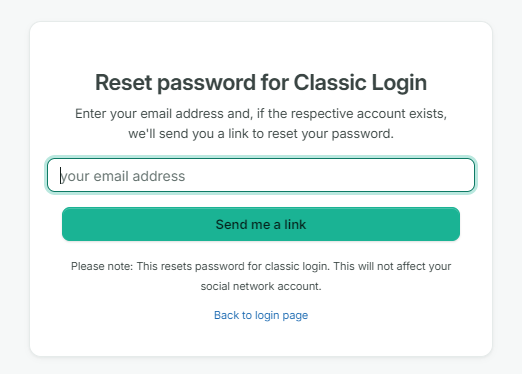
Once you know which email address your account uses, you can reset your password. On the login page, click Classic Login, then Forgot password?, and enter that email address. If an account with that address exists, we'll send you a link to set a new password.
Step 3: Still stuck? Contact support
If nothing above helps, simply contact our support and we'll start the account recovery process. Before you do, it's good to know what to expect:
It takes time. Account recovery includes waiting periods that can't be skipped or shortened, however urgent your situation is. We can't speed it up, and that's for your own protection
It's strict. Handing over an account to someone who isn't its owner is one of the worst things that can happen on any platform, so we check carefully
It's only partly automated. Some steps are automatic, but the final decision is always made by a person who reviews the case before access is restored
It doesn't always succeed. If there isn't enough information to confirm that the account is yours, we won't be able to restore access
Remember, account recovery can only be started by contacting our support team.
If you need access by a certain date, for example before a call for speakers closes, don't leave it to the last minute. Start the process as soon as you notice the problem.
Make sure you never get locked out
Jobs change, company email addresses disappear, and your Sessionize account can easily outlive all of it. A few minutes now can save you from potential trouble later.
Add more than one login
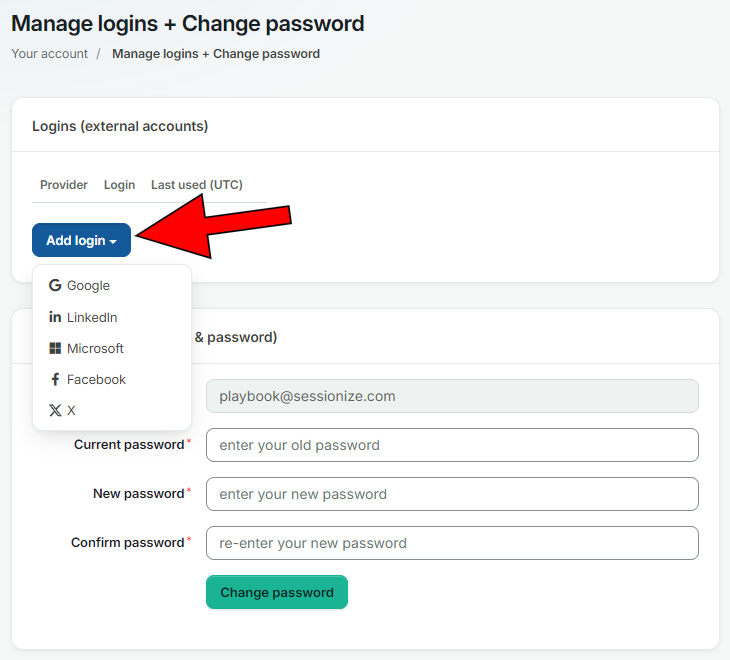
This is the single most effective thing you can do. Add at least two logins to your account, ideally one private and one work login, for example your personal Google account and your company's Microsoft account. If you ever lose access to one, you'll still get in with the other. Click your name in the top-right corner, select Manage logins, then click Add login. More details are in the Adding multiple logins article.
Use a private email address
Your Sessionize email address is where we, and the organizers of events you take part in, send notifications. Make it an address you'll keep no matter where you work. You can change it by clicking your name in the top-right corner and selecting Change email address.
If you only organize events on behalf of your company, a work address makes perfect sense. Speakers, however, usually speak in their own name, and their speaking career tends to outlast any particular job, so tying your account only to a work address isn't ideal.
Fill in your profile, even if it isn't public
Add your tagline, bio, photo, and social media links such as LinkedIn, X, or GitHub. Don't skip this step even if your profile isn't public, thinking nobody will see it anyway. It can pay off twice:
Organizers of events you submit sessions to can see these details, even when your profile isn't public
If you ever need to go through account recovery, the information in your profile helps us confirm that you are who you say you are. The more there is, the better your chances