
You're a personal assistant, marketing manager, or maybe just that one person in the company who got tasked with submitting sessions for your colleagues. Whatever the case may be, you need to submit a session for someone who isn't you. Good news: Sessionize makes this easy.
What NOT to do
Don't create a Sessionize account for the speaker using your own email address. It might seem like a quick fix — you make the account, fill everything in, and call it a day — but it creates a mess down the road. The account is tied to your email, the speaker can't access it, and when they eventually need to log in, edit something, or respond to the organizer, things can get very complicated, very fast.
What to do instead
Use your own Sessionize account and submit the session as someone else. That's it. No need to create fake accounts or juggle someone else's credentials. Here's how it works.
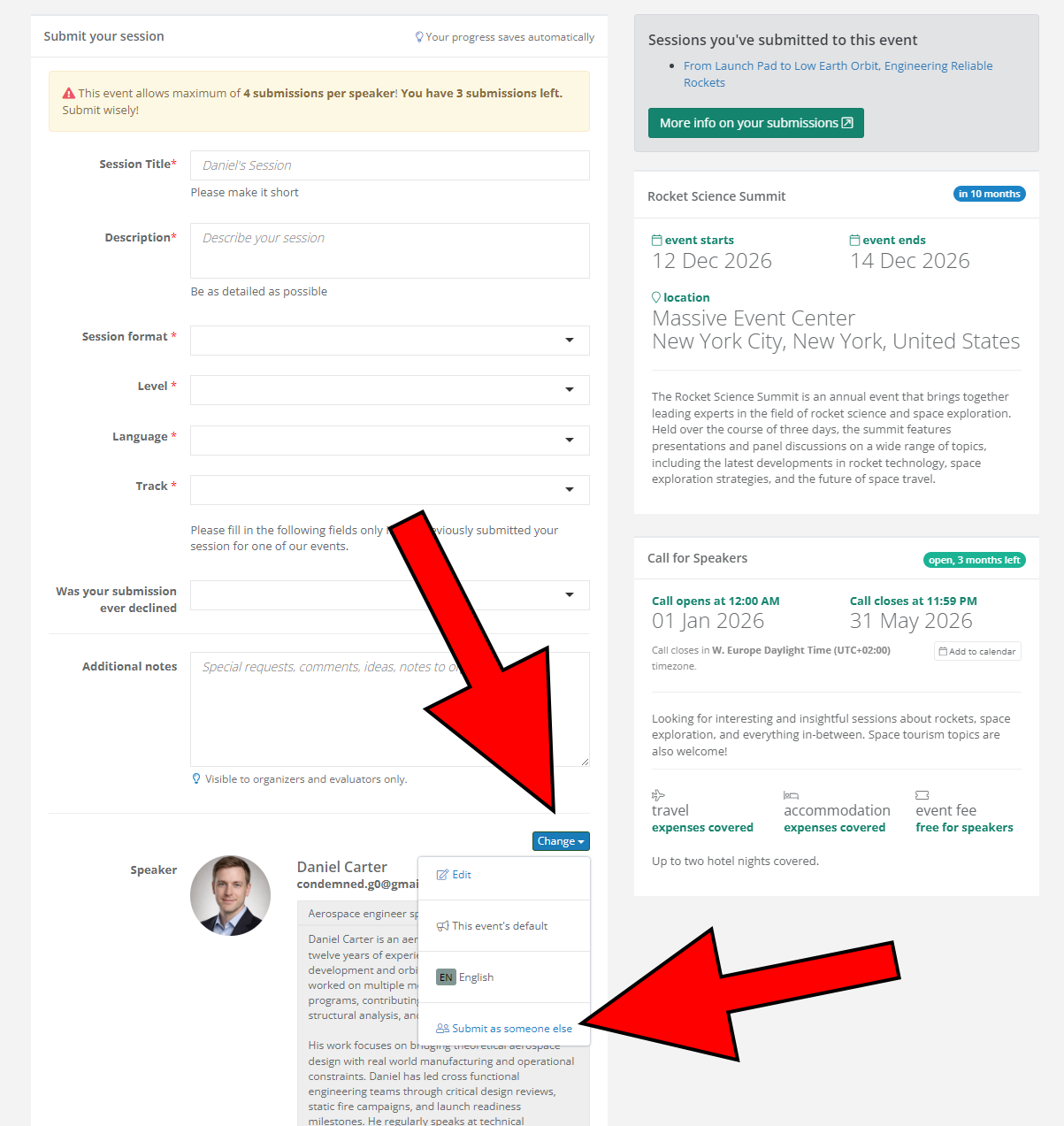
First, visit the event's Call for Speakers page and start a new submission as you normally would. In the speaker section of the form, look for the blue Change button above the speaker name, click it and select the Submit as someone else option.
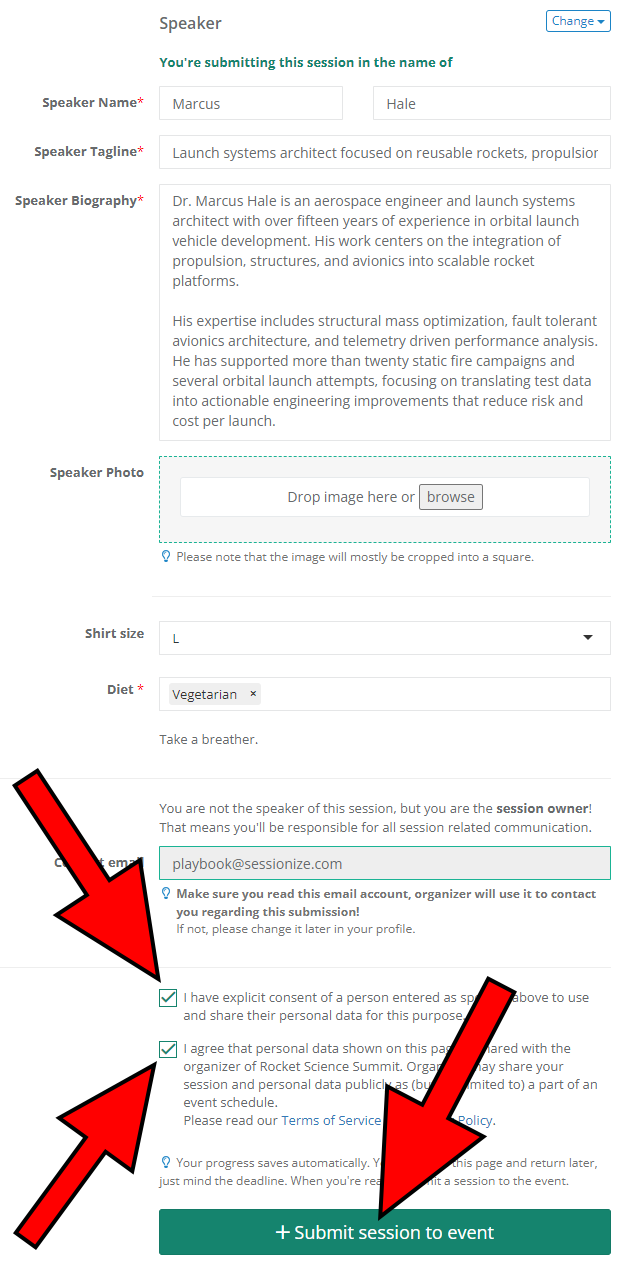
Fill in the speaker's details — their name, bio, photo, and everything else the form asks for. Complete the rest of the submission as usual, tick both boxes at the bottom of the form and hit Submit session to event.
The session is now submitted under the speaker's name, and you remain the session owner. That means you're the one who can edit the session, communicate with the organizer, and manage everything on the speaker's behalf.
Don't see the Submit as someone else option? That means the event organizer hasn't enabled it. Reach out to them and ask if they can turn it on.
Submitting for multiple people
Here's where this approach really shines. Because you're using your own account, you can submit sessions for as many speakers as you need — all from a single Sessionize account. No need to create separate accounts for each person. Submit one session for Alice, another for Bob, and a third for Carol. They all show up in your profile, neatly organized under the event.
What if the speaker wants to take over?
Let's say you submitted a session for a colleague, but now they want to manage it themselves — edit the description, respond to the organizer, or just have it under their control.
The event organizer can change the session owner at any time. They can invite the speaker by email, and once the speaker accepts the invite with their own Sessionize account, they become the new session owner. By doing so, they get full control over the session.
If the speaker doesn't have a Sessionize account yet, that's perfectly fine. They'll be prompted to create one when they accept the invitation, and everything will be linked to their account from that point on.
Quick recap
- Don't create a Sessionize account for someone else using your email. It causes confusion and access issues
- Do use the Submit as someone else option from your own account
- You can submit for multiple speakers from a single account
- If the speaker wants to take over, the organizer can transfer ownership to them at any time
That's all there is to it. Simple, clean, and no tangled accounts to sort out later.
If you're an event organizer wondering how to enable the Submit as someone else option, take a look at the following article: Agent mode lets you submit sessions as someone else.